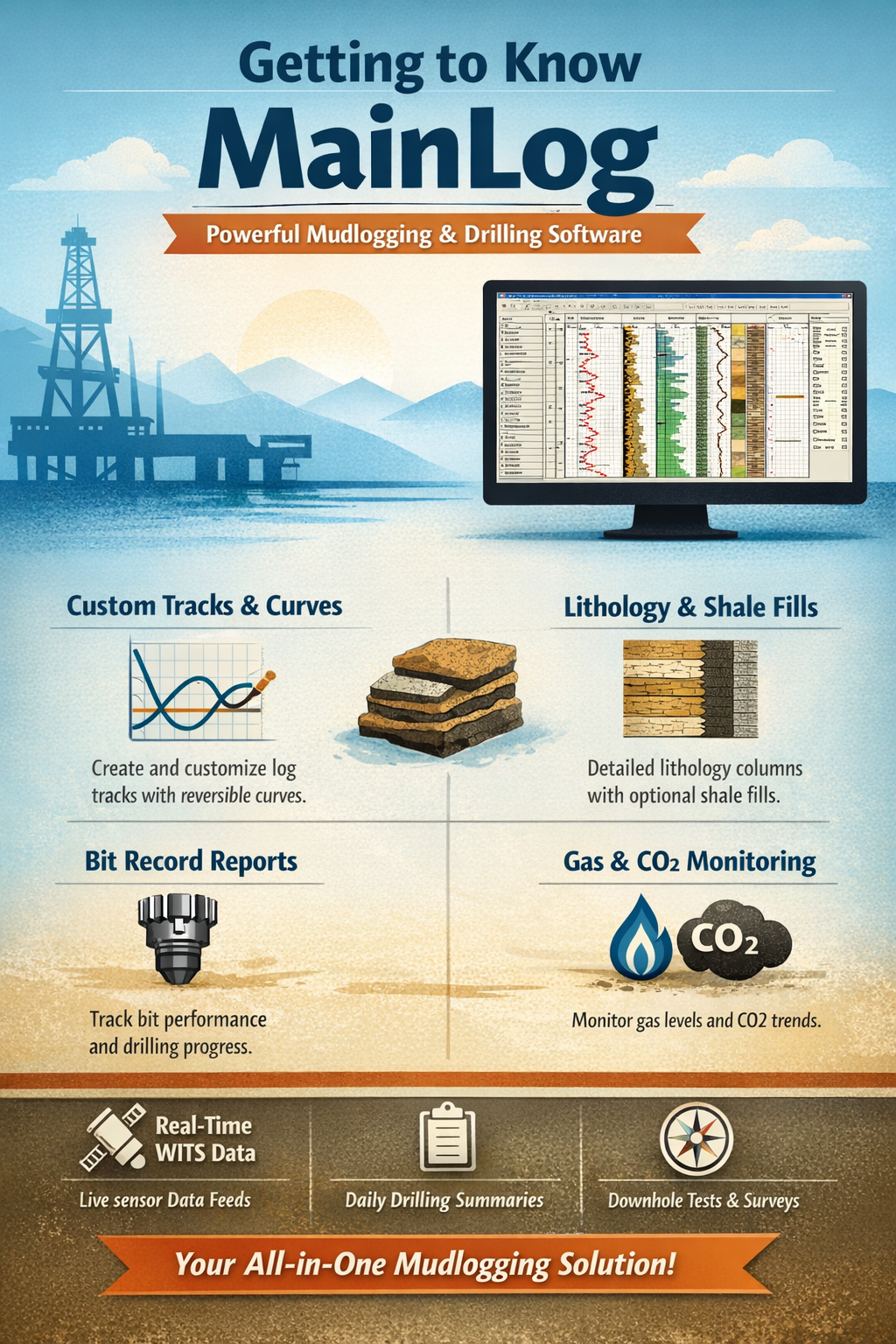
Mainlog Mudlogging Software

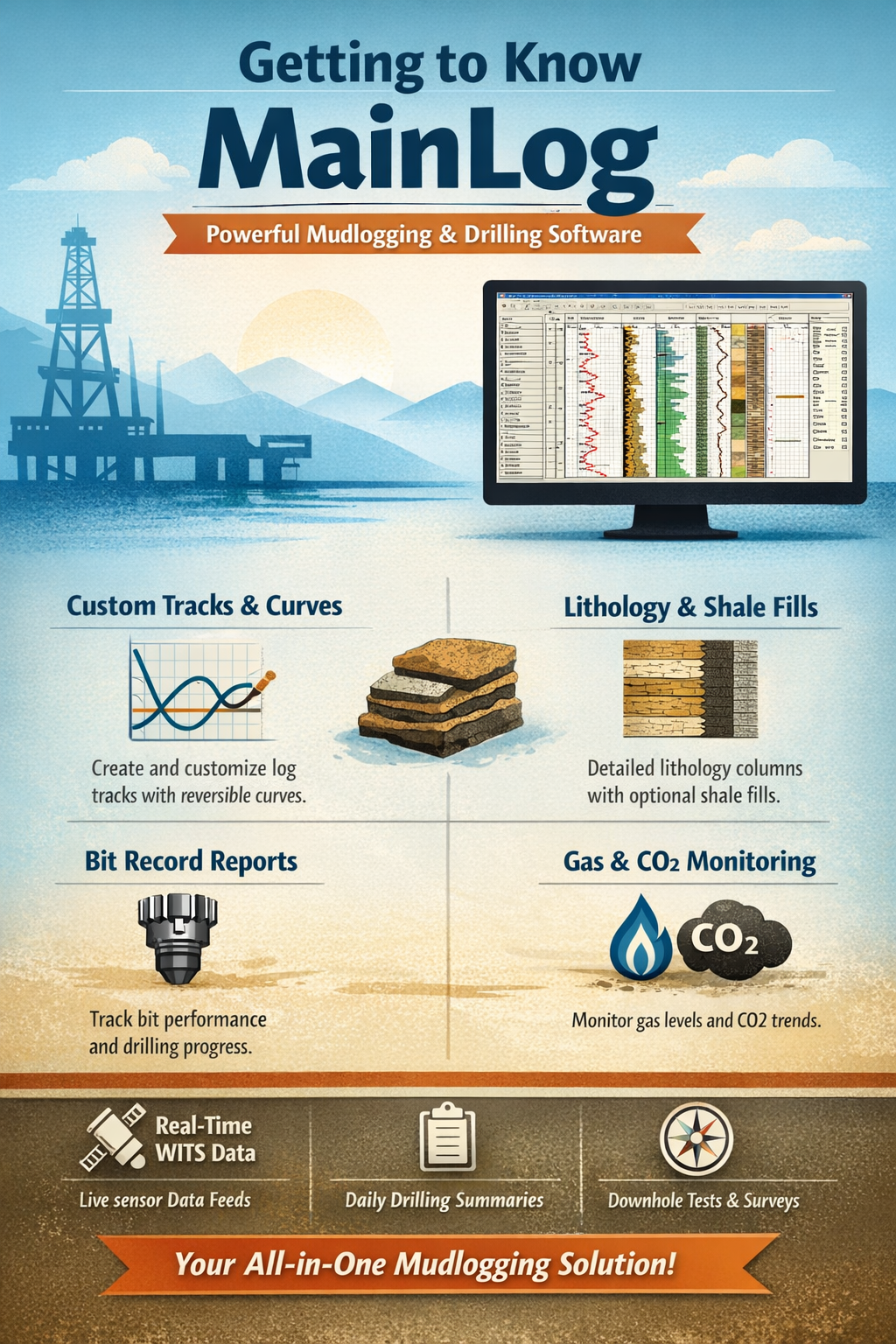
Are you familiar with a mudlogging software called mainlog? my sister is trying to flip or reverse the graphic chart the other direction like a mirror image. Do you know how to do that?
ChatGPT 5.2 said:
Yeah — MainLog has a couple different “flip/mirror” type behaviors, depending on what she’s trying to mirror.
1) Mirror a curve (most common: make a curve run the opposite direction)
This is usually done inside Custom Tracks by using the Reverse curve option.
- Turn on Custom Tracks (either the Show CT button, or Setup → Lines and Scales → Enable Custom Tracks).
- Right-click the custom track/grid to open the customize dialog.
- Select the specific curve/track line she wants flipped and look for a checkbox/setting labeled “Reverse curve” (or similar) and enable it. MainLog explicitly supports “reverse curve” as a per-curve setting in Custom Tracks.
- Save/close.
2) “Mirror” the layout by moving columns/tracks left ↔ right
If she wants the track itself on the other side (not just the curve direction), Custom Tracks lets you move columns:
- In the Custom Tracks dialog, hold Ctrl and click the right or left side of the track label in the direction you want it to move.
3) Flip shale fill direction in the lithology column
If she literally means the shale “fills” from the other side:
- Setup → Lines & Scales → “Shale on Left” (toggle on/off). When enabled, shales draw starting from the left side of the lithology column. (Scribd)
(Note: MainLog says this is enabled only for some clients.) (Scribd)
4) Swap where the description column sits (a partial “flip”)
MainLog has an Alternate Format option that moves the description column to the right of the gas column. (Scribd)
If you tell me which exact panel she’s trying to flip (vertical mudlog page, WITS chart, gas chart, custom tracks, lithology column), I can point you to the most likely exact toggle. If you can paste a screenshot of the screen she’s looking at, I can be very specific about where to click.
You said:
I just downloaded the Drlg-man-P.pdf directly from mainlog.com So do you want me to show you? or did you already have that taken care of?
ChatGPT said:
I’ve got it handled — I can access that exact Drlg-man-P.pdf from MainLog’s site, so you don’t need to show me the PDF.
What would help (if you want the fastest pinpoint answer) is a screenshot of the exact chart/screen inside MainLog she’s trying to mirror, because “mirror image” can mean a few different things in MainLog.
Here’s the practical cheat-sheet of the 3–4 “flip” behaviors MainLog actually supports:
A) Flip a curve left↔right (most common “mirror” request)
This is typically done per-curve in Custom Tracks:
- Turn on Custom Tracks
- Right-click the custom grid/track → customize the curve
- Use the option that lets you “reverse curve” (MainLog explicitly calls this out as a feature of Custom Tracks). (Mainlog)
Also, tracks/columns can be moved left/right:
- Hold Ctrl and click the left/right side of the track label to move it. (Mainlog)
B) Flip the shale fill direction (lithology “shading” starts on the other side)
In the manual:
- Setup → Lines & Scales → “Shale on Left” (toggle) (Mainlog)
C) Move the description column to the other side (layout “flip”)
In the manual:
- Alternate Format moves the description column to the right side of the gas grid. (Mainlog)
D) Reverse the CO2 scale/plot direction
In the manual:
- Setup → Lines & Scales → CO2 scale can be changed and “reversed” (with the note about hydrocarbon scales being linear). (Mainlog)
If you paste one screenshot of what she’s looking at (even phone photo is fine), I’ll tell you which of the above it is and the exact clicks to do it.
You said:
She said she found the setting by clicking view bit record, does that make sense? How do I get to that setting of view bit record?
ChatGPT said:
Yes — that makes sense. In MainLog the Bit Record is one of the report windows you can open from the main menu bar (same place as Morning Report / Show Report / DST, etc.). (Scribd)
How to get to View → Bit Record
- Make sure you’re on the main mudlog screen (not stuck inside a chart config dialog).
- At the very top menu bar, click View. (MainLog’s main menus include File / View / Options / Enter Data / Setup…) (Scribd)
- In the dropdown, click Bit Record.
Fast keyboard way (Windows standard menu bar)
- Press Alt (activates the menu bar)
- Press V (opens View)
- Then use arrow keys to highlight Bit Record and hit Enter
If she doesn’t see “Bit Record” under View
A couple common reasons:
- She’s not in the main log window (close the dialog she’s in and click back on the log area).
- She’s in a mode where some items are hidden; try toggling Options → Drilling (that mode switch exists in MainLog). (Scribd)
- Some report features can vary by client/version (MainLog notes some features are client-dependent in general). (Mainlog)
If you can tell me what she clicked right before she saw it (top menu vs a right-click menu vs a “Quick View” button bar), I’ll narrow it to the exact path she’s seeing.
You said:
make a cool infographic about mainlog for my blog